Thursday, 31 January 2013

GitHub for Windows: Git for Beginners

Git is all the rage these days; you can’t move around the internet without bumping into all kinds of comments saying how Git is amazing, distributed SCM systems are the future, and so on. I myself come from the age of Visual SourceSafe (shudder) and TFS where all source-controlled content is locked down until changes need to be made. I have no major complaints about how TFS works – it may be a bit of a beast but it does the job well enough for me – but I can also see the benefits of a distributed SCM system where changes can be made offline and “pushed” to a central repository when ready, which is where Git shines.

GitHub has also helped its popularity by bringing a primarily Linux-based system to the masses, including the Windows crowd. Having said all this Git also has its drawbacks too:

  1. It is entirely command-line based – which is to be expected given its Linux heritage – which initially tends to put some Windows developers off. Now I’m not averse to using command-line tools but sometimes it is just easier to see something visual in front of you.
  2. I also hear that there can be some confusing aspects of Git, such as features that can be used in a variety of ways using various command-line switches. Memorising the commands you need on a daily basis can introduce a bit of a learning curve.

Even so I wanted to try my hand at using it, especially as I had a small project in mind that I wanted to keep track of. But as a complete newbie how do I start? I could follow these steps outlined by GitHub and fiddle around with all kinds of settings and SSH keys, or I could let GitHub help me by using their brilliant client front-end GitHub for Windows.

What is GitHub for Windows? As their website says it’s “the easiest way to use Git on Windows. Period.” It is a desktop application which provides some core features that you would typically use Git for but in GUI form (such as committing changes and branching/merging) but additionally installs all the Git tools you would need anyway; if the GUI can’t do something you can always drop back down to the command-line tools (and it will even help set up your shell to assist you). At the moment I’m just using it for local repositories but I also expect the integration with GitHub itself to be top-notch.

Let’s go over the main features I’ve currently been using.

Installation and Setup

I can’t think of many development tools which are this easy to setup. In the past I imagine that a lot of effort would have been made to download all the Git tools (possibly even having to build them from source), set up environment variables, use various other tools to create SSH keys and so on.

Not so with GitHub for Windows. It all comes bundled as a ClickOnce application; I simply downloaded it, installed it and it setup up everything I would need in the space of about 5 minutes. After that all I had to do was sign-in with my GitHub account and I was ready to roll.

Create a Local Repository

Main

You can of course connect to various repositories that are on GitHub but for the moment I wanted to focus on doing some local development on my own project; I’m not ready to make it public just yet. Again this is simple and straightforward; all I did was create a new repository under the local section and filled in a name and description of it. GFW (as I’m going to now abbreviate it as) then set up those special “.git” folders and initial files and I was ready to commit changes.

Committing Changes

Commit

This is actually the bit I’m most impressed with. I can go to Visual Studio and make all the changes I want to, then come back to GFW and it will have seen what has been changed since the last commit, providing you with a mini-diff window for each change made. Even if you delete a file that used to be in the repository GFW will notice it and remove the file on the next commit. Committing changes suddenly becomes incredibly easy and doesn’t require much thinking about.

Branching and Merging

Branches

Branching and merging is something that Git is apparently very good at; I had a read though this online book which explained really well how branches work in Git. GFW can handle branches very easily, simply create as many new branches as you want and easily switch between them using the menu.

To merge branches together is also simple; GFW has a branch manager window which shows all the active branches in the repository. To merge simply drag the branches to merge to the bottom of the window and hit the “Merge” button. It really couldn’t be easier.

Tagging

Tools

Ah, and now we hit something that GFW can’t do on it’s own. It is generally good practice to tag releases of projects so you can easily find them in your commit history, but GFW does not support tags out-of-the-box.

Not to worry though, because we can simply use the command-line tools to do that. GFW allows you to open a shell setup for your repository – in my case it opens Powershell using some extra Git extensions. Then I can do something like:

# Add a tag
git tag -a "NewTag" -m "This is a new tag!"

# View available tags
git tag

This is a great example of how, when the GUI does not support what you do, you can always go back to Git as it was meant to be used.


Start of a Beautiful Friendship


I haven’t been this impressed with a piece of software in quite a while. Not only does GFW ease a beginner like me into using Git on a day-to-day basis but it is actually one of the finest examples of a WPF application I’ve seen yet; it is fast, responsive and hasn’t failed me yet.


I look forward to actually pushing my project to GitHub when the time comes!

Friday, 18 January 2013

ASP.NET Websites and Sub-Folders in Project Output Paths

This will be a quick post but I wanted to get it out there while I remembered.

Yesterday and this morning at work I was faced with an unusual problem. One of our ASP.NET MVC websites, which worked perfectly fine until now, decided it did not want to compile. Specifically it was the Razor engine which wasn’t happy; the actual project would compile fine in Visual Studio but as soon as I ran it a runtime compiler error would happen immediately because a collection of Razor helpers could not find our own assembly as a reference. What’s going on?

So I searched and searched and found all sorts of questions on StackOverflow explaining how to add an assembly reference to the Web.config file and add it to the specific Razor Web.config settings but that wasn’t helping me at all; it simply refused to run.

Out of sheer frustration I started comparing the project folder to a previous version to see what could have possibly changed to break it and the only difference I found was that another developer had checked in a change which would compile the project output from “bin\” to “bin\{Configuration}”. Surely that can’t be the cause, can it?

Actually it was, and this blog post by Adam Craven explained why:

Intellisense in Razor for Custom Types and Helpers

Now most Visual Studio project templates will setup the output path of the compiled files to be “bin\{Configuration}”, which sounds sensible to me. Apparently ASP.NET projects don’t do this because the ASP.NET runtime will not find your own assemblies for some reason – as I said, the blog post above explains it better than I could.

So all in all a frustrating morning was resolved simply by changing the project output path. It’s funny how the simplest thing can completely break your code.

Wednesday, 16 January 2013

Unit Testing ASP.NET MVC Views

I have successfully jumped onto the Test Driven Development (TDD) bandwagon now and loving it. Over the last 6 months I’ve been trying to incorporate it wherever I can; my code at work is now starting to gain a number of unit tests within a codebase that initially I thought would be difficult to do automated testing on.

Recently I’ve started a personal project using ASP.NET MVC – I haven’t had much experience of MVC, only Web Forms, and wanted to expand my knowledge on .NET web development. I’ve heard many stories how ASP.NET MVC was designed from the ground up to be very easy to test so I jumped at the chance of reading up and experimenting with it. One bonus as well is that this would be all-new code; the one thing I’ve learned about TDD is that it works brilliantly with a clean-slate, with legacy code it requires quite a bit more work and slower iterations in order to not break what you’ve already got.

For most of the MVC framework I could clearly see how you could apply unit testing to your code as it focuses a lot on plain objects. One of the things I couldn’t initially get my head around though is testing controllers and verifying that views returned were correct.

Take this example of a simple controller:

public class AccountController : Controller
{
public ActionResult Index(int id)
{
Account account
= new Account()
{
Id
= id,
Name
= "My Account"
};
return View("Index", account);
}
}

It is actually quite easy to write a unit test for this controller and action as, thankfully, controllers are not strongly tied to anything to do with HTTP requests or responses, so testing becomes as simple as:


[Fact]
public void IndexActionReturnsView()
{
AccountController controller
= new AccountController();
ActionResult result
= controller.Index(42);
Assert.NotNull(result);
}

But at this point I got a little stuck. How do I know that the controller action returned the view that I wanted? Initially I was thinking only in terms of controller actions returning HTML output; how can we verify HTML text output in automated tests?


The answer is you don’t, and actually the answer is a lot simpler and cleaner; we don’t verify the overall output, we simply verify that the view has the necessary information (i.e. model data) it needs to generate the HTML output (or whatever output format is required).


This can be split up into several parts:


Check the View Name


One test can be defined to determine that the correct view was returned by checking the name of the view, such as below:


[Fact]
public void IndexActionReturnsCorrectViewName()
{
AccountController controller
= new AccountController();

// Cast the result of the action to a ViewResult, this will then provide
// view information for the test to confirm
ViewResult result = controller.Index(42) as ViewResult;

Assert.Equal(
"Index", result.ViewName);
}

One caveat I’ve found with this though is that in the controller you must specifically request which view you want; letting the MVC framework determine it by convention – based on the action name – doesn’t seem to work for some reason.


Check the View Model Type


The next test you can run is to ensure that the view returned was supplied with the correct model type, like so:


[Fact]
public void IndexActionReturnsCorrectViewModelType()
{
AccountController controller
= new AccountController();
ViewResult result
= controller.Index(42) as ViewResult;

// Test that the model object passed to the view was the correct
// type
Assert.IsType<Account>(result.Model);
}

Check the View Model Data


Finally you can then test that the view returned was supplied with the correct model data, like so:


[Fact]
public void IndexActionReturnsCorrectViewModelData()
{
AccountController controller
= new AccountController();
ViewResult result
= controller.Index(42) as ViewResult;

// Cast the model in the view result to the correct type and
// now we can test against it
Account model = result.Model as Account;

Assert.Equal(
42, model.Id);
}

Conclusion


This concept, once understood, feels incredibly clean to me. If you think about it you don’t want to test how a web page looks because that could change over time thanks to re-designs, plus parsing such information would be incredibly painful. All you need to do is verify that the view was given enough details for it to carry out it’s job; can it display a title for the page, does it have the correct list of customer orders to render, etc. It has actually made me re-think some of my code designs to better match this concept.


I can see why developers love ASP.NET MVC compared to Web Forms now!

Monday, 7 January 2013

My Life in Computer Games: Part 3

This is a series of posts which chronicles my life as measured by the computer games I’ve played; you can find parts 1 and 2 here and here. Let’s finish the journey…

Super Metroid

Image courtesy of Power Cords

So far I’ve been listing games in chronological order, so you might find it strange that I describe a game that was released on the SNES in 1994. The reason is that I discovered this game during my “emulator phase” after finishing university; I never owned a SNES so I decided to see what that console had to offer, and this ended up being one of my favourites.

Super Metroid was not what I was expecting from Nintendo; the company that produced Mario and Zelda, how did they also make this dark, atmospheric game with a design inspired by the Alien films? From the beginning the mood kicked in; exploring what looked like a dead planet with no life signs until you were spotted and things kicked into action, this game was an excellent adventure with memorable bosses, the feeling that if you just looked a bit further you’ll find the next upgrade and an exciting climax ending in a mad dash to escape before everything exploded around you.

Wii Sports

Image courtesy of Fusion Gamer and IGN

Things were changing. Consoles kept pushing for better graphics and more power to produce the same kind of games that we’d already played many times over but this time in high definition. Meanwhile I was starting to settle down, just moved in with my then girlfriend (now wife) and was getting bored of the same kind of gameplay experiences. Enter the Nintendo Wii and the one game which, although not the greatest by a long shot, explained precisely what the Wii was about: Wii Sports.

There isn’t really much to say about it; it’s simply a collection of mini-games focused on tennis, boxing, bowling and golf but it’s the way you play them using the Wiimote and motion controls that makes it different. No other console had done motion controls like this, or at least this simply before; even my wife wanted to play games with me – and somehow she can still beat at boxing every time! For it’s time the Wii was a breath of fresh air to me because it made games fun again.

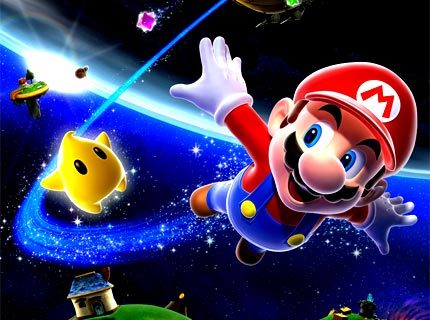
Super Mario Galaxy

Image courtesy of Super PolyPixel

I bought a Nintendo Wii because it was the perfect party games machine which would get my friends involved but also for another reason; I’m a hardcore gamer at heart and wanted to play proper Nintendo games again. And Super Mario Galaxy was the next game I got for it.

In essence it evolves the formula laid down years ago by Super Mario 64; Mario collects stars to open more levels, fights Bowser, saves Princess Peach (again!) etc. etc. But this time in space! Which actually opens up new ideas because gravity plays a part now; Mario could literally run around a small planetoid and not fall off it, or jump to a nearby object to fall into that gravity well. Once again I was amazed with the ingenuity of Nintendo who never seem to run out of creative ideas.

I also distinctly remember this as one of the few games where I didn’t have to battle with the camera controls; the fact that you could manoeuvre Mario in all kinds of planes made me think this would be awkward but I can’t remember a time where things got in the way, the camera just followed him almost perfectly.

World of Goo

Image courtesy of Edge

This most recent generation of consoles brought something new to the mix; having internet connectivity meant that games could be downloaded to the console for the first time ever. World of Goo was my first ever downloaded, unboxed game.

To describe World of Goo is a bit difficult. Essentially it is a puzzle game where you have to connect goo balls together into structures and help the remaining goo balls to escape the level via a pipe – sounds similar to Lemmings, doesn’t it? But the game as a whole is far more than that; it has an artistic vision to it, playful and not taking itself too seriously. There is something of a plot even, told via signposts you see in each level, though not strictly a linear story, more based around themes than anything else. And it has an amazing soundtrack.

The problem in describing this game is that my basic words don’t do it justice; I think it is simply one of those games you have to experience for yourself.

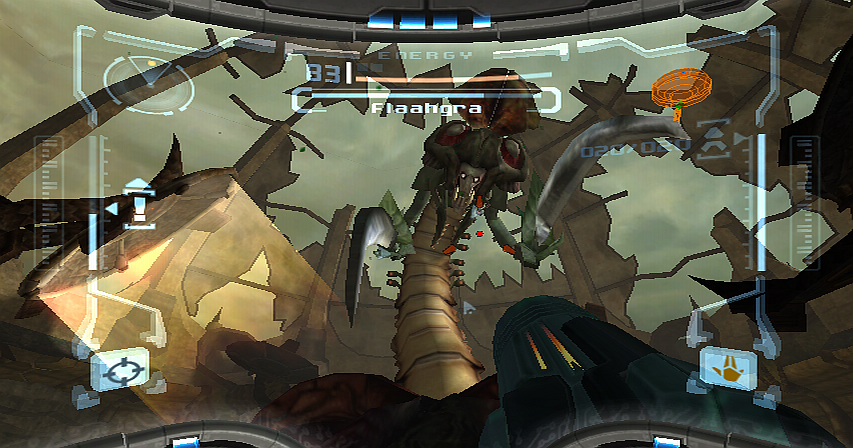
Metroid Prime Trilogy

Image courtesy of Pure Nintendo

One regret I had in never owning a Gamecube was that I never got to play Metroid Prime, a game that so many people had misgivings about (“Metroid in 3D? In the first person? Impossible!”) yet was actually critically acclaimed and ended up being one of the best games on that system. Fortunately I did get to play it on the Wii, plus it’s two sequels and with enhanced motion controls, all in one package.

In terms of adventure I felt that Metroid Prime was better than Super Metroid. It had the same atmosphere of Super Metroid and the same sense of adventure but felt much more immersive. The addition of the scan visor also meant that plot details could be viewed (or not if you didn’t want to), so you would read journal entries from the enemy describing how “The Hunter” (a.k.a. you) was slowly infiltrating their bases. And I thank Nintendo for adjusting it to use the Wiimote and create a real first-person control scheme.

Metroid Prime 2: Echoes was the Gamecube sequel and followed in roughly the same footsteps as Prime but introduced that old gameplay staple of the “dark world”: splitting the world into both light and dark  meant double the size of the levels and some ingenuity of puzzles. Personally I found this game difficult; I still enjoyed it but every time you entered the dark world it would sap away at your health, forcing you to find shelter in special “safe zones”. This meant things were more tense when you’re trying to escape enemies whilst also desperately trying to find the next safe zone. Plus there were some sections which almost had me pulling my hair out in frustration; in general, it was harder than Prime.

Metroid Prime 3: Corruption was the true Wii sequel to the trilogy and it showed; designed completely with the Wiimote in mind it added certain actions like flicking the nunchuk in a whip-like fashion and using the Wiimote in certain situations by having to twist it this way and that, plus the graphics were much improved. Overall it was a solid sequel and altogether one of the best deals I’ve purchased.

The Legend of Zelda: Skyward Sword

Image courtesy of G4

And so to my most recent game which I’m still trying to complete after a year! (Not because I’m bad but trying to find the time to devote to it is tricky for me now).

There is one reason why this game is great: pretending the Wiimote is a sword, like everyone imagined they would do when they first heard about the Wii. Swinging in a particular direction makes Link swing exactly the same way, which actually adds some strategy to the usual hack-and-slash action. For instance, I could swing horizontally but the enemy could block that direction; only a vertical attack would work. Things get interesting when enemies keep dodging and blocking your attacks forcing you to adapt as well.

Apart from the sword your other items have motion controls too; swing you Wiimote like a whip to use the whip, pull back your bow string as you would expect, push your shield hand forward to perform a shield bash attack, and so on. Finally Nintendo made good on their promise of motion controls being the future.

The End?

And that’s my life so far. Like I mentioned in part 1 I’m not sure I’ll be able to keep playing lengthy games anymore, partly due to lack of interest and partly due to time constraints. I’ve got a few games on my phone which may be more manageable, but I’m guessing I will now wait until my children are old enough to want to play computer games too before I start again.

Friday, 14 December 2012

My Life in Computer Games: Part 2

This is a series of posts which chronicles my life as measured by the computer games I’ve played; you can find the first part here. Let’s continue the journey…

Perfect Dark

The N64 was starting to run out of steam but, like every console at the end of its lifecycle, it had a few last gems to dish out. One of them was Perfect Dark, the spiritual successor to Goldeneye.

It was basically the same kind of gameplay that Goldeneye introduced but in a different setting and tightened gameplay; it still had the mission difficulty of its predecessor but crammed in so many more features, allowed you to play in a higher resolution (640 x 480!) and even had voice samples – even if the voice acting was terrible at least it added a bit more to the atmosphere having guards complain about being shot.

Once again though the multiplayer was where it truly shined, not only by adding more weapons and options but by adding bots, allowing up to 12 players at once – 4 human, 8 computer controlled. This really changed the pace of the matches; Goldeneye had a more measured, strategic pacing but because Perfect Dark bots never stood still for longer than a second you always had to be on the run making things a bit more frantic; it is how I imagine PC multiplayer games like Doom and Quake to be.

Banjo Tooie

Image courtesy of Wallpaper Pimper

In 1998 Rare released they’re take on the 3D platformer, Banjo-Kazooie. I loved that game but I have far fonder memories of it’s sequel Banjo-Tooie (despite the ridiculous name).

Whereas the first game had big worlds to play in, this one had massive worlds; when playing through the first level I thought it would be a bit bigger, but when I got to the highest point and looked down I could see everything before me! That must have been quite an achievement for the N64. Not only were the levels huge but they were interconnected; unlike other games where each level/world was it’s own distinct area, this game connected each level at strategic points to give the illusion of it being a far bigger world. In fact some of the games puzzles relied on having to move about between levels; Chuffy the Train is one example.

Banjo-Kazooie also tried to have it’s own “Lock-on Technology” moment by introducing “Stop ‘N’ Swop”, the idea being that once you finished the first game you could unlock secrets that would carry over to the sequel, though it never really worked out in the end. Banjo-Tooie did make reference to it but it was entirely self-contained in it’s own game. Shame.

Metal Gear Solid 2

Now this is a bit different! I never actually owned this since I never had a PS2 but my friend did and we spent ages playing through it. I had seen trailers of it and it looked amazing! Everyone was hyping this game up. So when we started it instead of playing as the legendary Solid Snake we had… a girly, floppy haired man with girlfriend issues. Eh?

It turns out it was all part of a ruse. All the E3 trailers showed Solid Snake back on form but actually the focus was not on him for most of the game: only if when starting a new game did you say you never played the original (like we hadn’t) did you skip the well know tanker part and instead went straight to the meat of the game playing as new spy Raiden. I can kind of understand it now; by changing the perspective you see the most important character in a new light. Still, it left me and my friend a bit perplexed initially, especially when I told him there was a whole other part of the game that he hadn’t experienced.

Nonetheless it was a really great game. The graphics were fantastic, the stealth gameplay excellent, the boss battles massively over the top and the cutscenes well presented, even if on the long side – I’m sure half the game was devoted to just watching it. My highlight though was towards the end when the game tried to play tricks on you, suggesting you “turn the console off now” or the “Fission Mailed” screen; for a game which played it straight most of the time it left us a bit shocked as to what to do.

Half Life

“They’re waiting for you Gordon, in the test chamber…”

Image courtesy of Giant Bomb

I was never really into playing PC games as it seemed each game I bought required a brand new set of hardware, which gets expensive quickly. But a few have caught my eye throughout time and this was one them.

Half Life tells the story of a scientist who has to escape the confines of a research facility once an accident happens and aliens start arriving. So far, so typical science fiction. What made this PC shooter stand out from the others though was it’s narrative and the fact that you were part of it; no cutscenes, no ever seeing what Gordon Freeman looked like, everything was played from your perspective.

There were also no levels, instead the entire facility was a level. The opening sequence demonstrated this brilliantly; as you were heading to work on the tram system you would see everyone else going about their jobs, passing through security sections, watching things move about. Despite the aging graphics it felt real, like this was a fully functioning place.

The enemy AI was fantastic too. Initially you met various aliens which felt reminiscent of Doom but eventually you met the Marines who were really smart; it took a lot of clever thinking to outsmart them sometimes.

Start Wars: Jedi Knight II

There have been a bazillion games based on Star Wars but how many of them can you remember that were even slightly good? This one, in my opinion, was one of the best because finally I could be a Jedi; not doing goody-goody two-shoes tasks like diplomacy like the prequel films would have you suggest, but doing what all kick-ass Jedis do by hacking and slashing Stormtroopers with a lightsaber.

Overall I just liked this game; the force powers were focused and the lightsaber duals were fun. The initial few levels forced you to play with weapons which was a shame but it was the lightsaber that stole the show.

Halo: Combat Evolved

Image courtesy of Pocket-Lint

A new kid came on the block; Microsoft thought they could do this video games thing just as well as Sony and Nintendo so invented the XBox, a huge black console which would leave a legacy. But every console needs a “killer app” to sell units, especially one that no-one had ever heard of, and that is what Halo became.

Lots of people played it for its multiplayer but I played it for its engaging story, the clever AI and most importantly its co-operative play. Me and a friend played through the co-operative game religiously and for once it made a difference; it wasn’t just about who could shoot more enemies but it helped with your strategy and we both looked for each others backs. It also has one of the best climatic endings for a game I’ve seen.

Half Life 2

Image courtesy of Voodoo Extreme VE3D

I played this version on the XBox and thought it was a great sequel to the original. The scope expanded from the Black Mesa facility to City 17, an unknown European city where the remaining humans were being rounded up by the invading alien forces. The opening in this game worked in a similar vein to the original, but this time focused on the humans milling around, listless and hopeless.

The real star of the show though was the physics and infamous “Gravity Gun”. This was probably the best weapon in the game yet didn’t fire a single bullet: instead it let you pick up nearly any object and fling it with force and anything you wanted. The Ravenholm section was the best example of this: flinging buzzsaws at the zombies and slicing them in half never got boring.

I also really liked the technology powering the game; having the characters watch you and lip synch perfectly was quite something I thought.

Next Time

The last part focuses on recent years, particularly the Wii. Stay tuned!

Friday, 30 November 2012

My Life in Computer Games: Part 1

I’m coming to a realisation that has slowly been dawning on me for a while now: I’m going to give up playing computer games. For someone who has been playing them since childhood that’s quite a big thing to say, but it is for several reasons.

First and foremost I do not have the time anymore. I’ve got a full-time job and a family to support so free time for me is extremely precious. I’m currently playing The Legend of Zelda: Skyward Sword, but I’ve been doing that since Christmas 2011! And I still haven’t finished! So far I think I’ve clocked up about 40 hours gameplay time but that is very much spread out across a year, playing maybe a couple of hours a week at best. Finding the time for anything more involving than Angry Birds is simply difficult these days.

But it’s not just a matter of finding the time anymore, I actually don’t feel that bothered about computer games anymore. In the limited free time I have left I would rather actually be doing something constructive (such as writing this blog) and learning more about programming. I’m still interested in how computer games are made – I found the code reviews that Fabien Sanglard did on the Quake and Doom game engines really interesting – and I still appreciate them – I think Halo 4 looks amazing. But playing them? Meh.

So I thought I would make a list of all the memorable games I’ve played during my life so far and reminisce, which is going to span a few posts.

The ZX Spectrum

When I first asked my parents for a computer to play computer games I thought I would be getting a Nintendo or a Sega console. Instead what I got was a ZX Spectrum +2, so not quite what I was expecting.

In the end it did shape my entire career by introducing me to programming, but as a game machine all I remember was having to load tapes which took minutes – and also provided a lovely whining noise and hallucinogenic loading screen – only for me to play it for 30 seconds and give up because I didn’t find it entertaining. Maybe the next one will be better… (wait another 5 minutes to load the next tape).

A ZX Spectrum loading a program. Wow, my head hurts…

So I gave up on the Spectrum and got myself a Sega Master System, which then led to a Sega Mega Drive, which then led to…

Sonic the Hedgehog

Back in the 16-bit days you were either with Nintendo or Sega, Mario or Sonic. I chose Sonic and have many happy memories of those games, because they were fast!

Sonic the Hedgehog 2 was my personal favourite, the video above showing one of my favourite levels due to the sheer speed you can crank up to – so fast that the screen sometimes can’t even keep up with you!

But the real gem of the series was Sonic 3 and Sonic & Knuckles. Both individual games on their own were great, but the “lock on” technology that Sonic & Knuckles brought made them combined into an amazing experience – extending the Sonic 3 game, or by joining Sonic 2 to it you could turn an old game into a brand new experience.

Recently I actually wondered how they even did the “lock on” bit; how do you turn one game into three games? And how do you take an old game which wasn’t even designed for this kind of thing and make it into what is effectively a brand new game? Turns out that actually it was a clever ROM trick, by joining ROM chips together to make a new one; this long forum post explains it in far more detail.

The 32-bit Years

After the Mega Drive I got a Sega Saturn – not sure why in retrospect and not a PlayStation which was the latest hotness at the time. There were some good games such as Sega Rally and NIGHTs Into Dreams but this was the advent of 3D graphics and things were just starting out. One game caught my attention though which made me rethink everything…

GoldenEye

Need I say more? Oh, alright then

I remember going round to my friend’s house and they were playing GoldenEye. I had a go – the Nintendo 64 controller looked a bit weird to hold – but I started playing it and I realised quickly that I was completely hooked on the multiplayer. Every console before the N64 supported two players but this one could support four, meaning that multiplayer shooters actually made sense outside of a PC.

So I got an N64 with GoldenEye as my first game for it. The single player missions were great with lots of challenges added as the difficulty ramped up, but my single defining memory of this game was spending nearly all my free time between A-Level lectures playing deathmatch games against my friends. And beating them. Over and over again.

Super Mario 64

Now that I had a N64 I wondered what other games to play on it, so of course I got the N64 killer app: Super Mario 64.

Now before then I hadn’t actually played a Mario game before but this game was great. I remember just wandering around the castle hub-world doing all sorts of acrobatics simply because I could and the analog stick finally let me move around in 3D which made sense. Although I have to admit the camera controls did suck.

Throw a dinosaur four times my size into a bomb? No problem!

I also came to realise that games that Nintendo made really were top quality; they were fun, inventive and imaginative.

The Legend of Zelda: Ocarina of Time

This game came out during Christmas 1998 and was snapped up by just about everyone at the time. I was very lucky to get this on Christmas Day and spent the next two weeks solid becoming immersed in it.

Just like Mario I had never played a Zelda game before so I never experienced the sense of adventure previous games conjured up, and this did feel like a real adventure. It introduced concepts like “locking-on” to your target during combat so you could always see them (something every game afterwards copied) and split the world into two times: current and future, meaning you played as Young Link and Adult Link. And you got to ride a horse!

Looking back I simply remember the variety of the gameplay, the sense of scope (looking into the distance at the volcano or riding across Hyrule field), and the final climatic battle with Ganondorf.

The Legend of Zelda: Majora’s Mask

The sequel to Ocarina of Time, this was like a Zelda game and also not like one at the same time. With the benefit of hindsight I think this had a lot more emotional depth than Ocarina.

The main selling point of this game was that you had to save the world from destruction in just three days (game-time, not real), but of course you couldn’t do everything in that kind of timeframe. This meant that a “Groundhog Day” concept was used: you could relive the same three days over and over again to make progress and also watch the lives of each inhabitant of the world happen over and over again, making notes of key points in time when they would do certain actions. It was a bit harder than Ocarina and there was an added sense of urgency (what with an evil-looking and ever looming moon constantly visible in sky) but still worth playing.

That doesn’t look promising. Image courtesy of http://www.ogeeku.com

The emotional depth I mentioned though was something I wasn’t expecting; every character had a backstory and it was your job to help them. One little girl’s father had turned into a monster yet she tried to shield him from the world to protect him. A baby had lost his father and brought depression to everyone around him. Probably the most poignant one was having to re-unite a wife and husband – the longest of all the side quests; you eventually did but only just in time, by which point the moon was nearly about to crash into the world – you brought them back together long enough for them both to properly say goodbye to each other. This adventure was not about stopping a singular enemy, rather it was about healing the wounds of the people of the world.

Next Time

There’s still a lot more to go, so stay tuned for the next part.

Wednesday, 14 November 2012

Forcibly Uninstall Apps from Windows 8

I took the plunge a couple of weeks ago and upgraded to Windows 8. It takes some getting used to but overall I’m mostly happy with it. Except when it did something very unusual with the Metro apps (I refuse to use another name since everyone by now knows what “Metro” means).

For those who don’t know when updates are available for Metro apps they appear in the Windows Store, a little number appears on the live tile. One day I found that there were updates available for all the built-in apps such as Mail, Calendar, Bing etc. So I dutifully went to start the update process, found it was taking a while as there were quite a few, and just left it to it.

To be fair I might have messed up my system myself but while this was happening I thought “I don’t need Travel, Sports or anything like that. I’ll just keep the ones I’m interested in”. So I uninstalled the apps I didn’t care about whilst they were still updating.

In retrospect I should have known better – I’m effectively classed as a power user! As a result of my blunder I ended up with nearly all the apps that were updated being wiped from the system, including some of the ones that did matter to me. Here’s the interesting part though: when I went back to the Windows Store to try and install them again I couldn’t. This is what I saw:

So the Store thinks it is already installed. So why when I search for it does this happen?

Something in Windows clearly thinks I have the app installed. Now in the past I would have known to check certain folders like Program Files or delve into the registry to see if some sort of metadata was lying around, but Windows 8 changes things up a bit: these Metro apps seem completely self-contained and sitting in the WindowsApps folder which is quite secure and doesn’t even let me read it by default. So how can I remove these hidden settings to get Windows to play nice again?

Fortunately after some Googling I found the answer on this forum which I will explain in detail below. In this example I’m going to re-install the Bing app despite the Store telling me that I already have it.

First you need to open up an elevated PowerShell console. Simply:

  1. Press the Win-key to get you to the Start Screen.
  2. Start typing “Powershell”
  3. Right-click on “Windows PowerShell” and click on “Run as administrator” in the menu that appears at the bottom of the screen.

Now you can run this cmdlet to see what Metro apps Windows considers to be installed:

Get-AppxPackage -allusers


This should give you a list like in the image below:


Now that you’ve got the details of the app you can run another cmdlet to remove it. In my case I did this:


Remove-AppxPackage Microsoft.Bing_1.5.1.251_x64__8wekyb3d8bbwe


You’ll notice that you have to use the PackageFullName value that is provided in order for the cmdlet to work.


Once that was done I went back to the Windows Store and checked that it worked:


In my case I simply repeated these steps until I had cleared up my mess and managed to get everything I wanted back.


I think it’s quite good that there is actually a way to uninstall something in an automated fashion. Regardless, this trick got me out of a hole so I’m sure someone else might benefit from re-learning Windows tricks like I’m doing.