Tuesday, 26 June 2012

Using Pocket and its Bookmarklet on Windows Phone 7

I have a Windows Phone 7 smartphone, a HTC Trophy to be exact. I can't speak for iPhones or Android phones - since I've never used them - but I like my WP7 phone (just not in a religious way). It presents everything in a nicely laid out fashion, I really like the Live Tiles and how they give me information without having to go into apps to find out, and best of all for me it seems really simple; it just does enough for what I need it to do.

But this isn't a post about how I love Windows Phone 7, this is a post about a common scenario I face day to day.

Reading It Later

When on the go I'll read through my Facebook and Twitter feeds using WP7's built in social network integration - it's not fancy but boy is it faster than any dedicated Facebook/Twitter app you'd care to try. OK, enough of the hard sell, time to focus...

Often I'll come across a link that someone has posted pointing to a blog post/news article/video/whatever that I'll be interested in, which of course will pop open in IE Mobile. Sometimes I'll read it, but other times I just want to "read it later" - either the article is too small for a phone screen to read easily, I don't have time to read it all, or it's a video and I would rather not eat up my data contract.

So my current system of saving these one-off things to look at is to email the link to myself - very easy to do in IE Mobile using the "Share" menu option - but then I'll end up with loads of emails in my inbox which are just reminders for me to do something. I just feels like there must be a better way...

Enter Pocket

I asked friends and looked around and eventually settled on Pocket (formally Read It Later). All it does is collect links that you save via a number of methods which you can then look at later. I went with this one because although it doesn't have much in the way of direct WP7 integration there are at least two simple ways that I can save links to my Pocket account from my phone:
  1. Email the link to Pocket. Again quite simple thanks to the "Share" menu.
  2. Add a bookmarklet to your favourites to magically save links.
But if you look at the instructions they give, it tells you to drag and drop the bookmarklet to your bookmarks bar because they are assuming you are doing this from your PC, which is not something you can do on a touchscreen.

Adding Bookmarklets to your Phone

Fortunately you can add bookmarklets to your phone's browser, it's just not as intuitive. Here's how I did it for the Pocket bookmarklet but I assume the same process can be applied for other sites:
  1. From your phone's browser, go to the Pocket bookmarklet page to see the button that has the bookmarklet link.
  2. Press and hold the bookmarklet button to get the "right click" menu to appear, then tap "Copy Link".
  3. Tap the "..." on the browser's menu bar to see the main menu and tap "add to favourites".
  4. Clear everything in the Web Address field and paste in the bookmarklet link - a long string of JavaScript code.
  5. Enter a memorable name for it - I've called mine "+ Pocket" like the website suggests - and save it.
That's it, you've now got a working bookmarklet in your phone's favourite list. Now any time you see something on your phone's browser that you want to read later, just go to the favourites menu and tap the bookmarklet to save it to your Pocket account.

Friday, 15 June 2012

Refactoring with WinMerge

A short post which I thought I would share since I found it useful.

The other day I was looking at some code and I knew that two functions were written in a very similar way, so I wanted to refactor them into just one function. But how do you see how similar they are? You could do it by eye, but there could be human error. Surely a better way is to have the two functions side by side so you can see the differences. And what do you know, there are tools out there that are designed to do just that.

So here is what I did:

  1. Copy the two functions into two separate temporary files.
  2. Compare those two files with WinMerge (or your favourite diff tool).
  3. Immediately see what's similar and what is different. Here's what I saw:

I can now see that a lot of it is very similar, giving me some indication of how I could refactor them into one function.

Sometimes the simplest solutions are the best. 

Wednesday, 13 June 2012

Becoming a Father: One Year On - Part 1

I'd thought I'd choose a different topic to what I usually write about. My son is now a year old, 13 months to be exact - sometimes it is hard to believe it - so I thought I would give a retrospective on my transition into fatherhood.

To read all the other parts to this series, click on the links below:

Part 2 - The First Two Weeks
Part 3 - Getting the hang of things
Part 4 - The Accident

The tl;dr version: being a parent is hard! No, I mean really, really hard!

The Beginning

Last May 2011 my wife announced to me at an unfavourable hour that her waters had broken. After calling the midwife we were told to make our way to the hospital in order for my wife to be induced; apparently her waters were greeny-brown, an indication that our son may have passed his very first stool before being born. Because midwives get concerned that this may cause stress to the baby, they wanted to induce my wife to get things going.

For about 8 hours my wife was pretty much left alone hooked up to a monitor to check the baby's vital signs, with very little sleep for both of us (a sign of things to come. More on that later...) Only till the next shift did a couple of midwives come and attend to us, and attend to us they did: my wife then had round the clock care which was really good for her as she was getting upset at the lack of information given to us.

Perhaps you've seen how babies are born on medical shows? It takes a lot longer than that. From about 8am till 1pm my wife was fed some sort of hormone drip which was meant to kickstart labour. The midwives were very good to my wife, always chatting and taking her mind off things. Once I came back from lunch did I really start to see the affects, as my wife's contractions had started.

This was the bit where I came into the picture. Everyone knows from TV and films that the father is meant to stand next to his partner and encourage this very slow breathing technique through your mouth whilst your partner is screaming in agony telling you what you can do with that idea. My wife did not shout at me directly but was clearly feeling the pain.

We had planned lots of things during the birth, built into a sort of "birthplan". Here's what new parents learn very quickly: plans of any kind go right out the window. My wife had intended to be in a birthing pool to help with pain relief, but to be induced means constantly being hooked up to drips and monitors. Walking and different positions also became difficult since her mobility was restricted from all these machines. Gas and air helped but there came a point - which originally she said she would refuse - to get the big gun out: the epidural.

After waiting for an anesthetist (resulting in more screaming from my wife) one finally came. She was obliged to give my wife the legal stuff, such as side effects, consent etc, though my wife was sucking on the gas and air constantly and shouting "Yes! Anything!" at that point. It did help with the pain though, the only drawback being she couldn't even stand up anymore: the epidural is injected towards the base of the spine so it basically knocks out anything from the waist down.

We had a bit of a breather for an hour or two at that point, which gave the midwives a chance to discuss with the next shift what has been happening (this would be about 17 hours since we arrived at the hospital). Finally, the big moment had come: it was time to get this baby out.

The next bit has been censored. If my wife saw that I described the birth of our child in any detail whatsoever she would kill me!

...4 and a half hours later, our son entered the world! Now usually this is greeted by the baby taking their first gasp of air and crying, at least that is what I considered to be the norm. Not so my boy; he decided to basically keep quiet, thereby raising alarms and calling in what looked like every midwife, nurse and doctor on the maternity ward to see to him and get him breathing. Let's just say it was the most frightening experience of my life. But there was nothing to worry about in the end, he was breathing just fine and simply didn't want to make a fuss. Cheeky monkey.

He was cleaned up and handed to my wife, who was still completely off her head from all the gas and air she was basically breathing in like oxygen. But it was there, that special moment when you realise that you have a little person that you instantly love. I stayed for another hour or two and then drove home to try and get some sleep while my wife still had work to do giving him his first feed.

All in all it took almost 24 hours from start to finish. I was immensely proud of my wife, who worried she would never be able to do it, and amazed that there was now a new little person in our lives (not very little though; he weighed in at 8lb 11oz, so was hefty enough). As I collapsed into bed when I got home I vaguely wondered what the future would bring...

My boy, less than a day old, wondering where the hell he is
Next time: the first two weeks...

Wednesday, 16 May 2012

How WinDbg Helped Me Find My Stackoverflow

I was faced with the problem recently of trying to work out why the worker process in IIS that was running my website kept crashing. The event logs told me that it was due to a StackOverflow error, but I found this odd. Firstly the fact that something in our code had changed so much that it introduced this error in the first place, and secondly that our default error handler did not catch it.

Basically we use the HttpApplication.Error event to email all uncaught exceptions to us with full details - including the stack trace - but this did not happen with this error. At the very least I would have thought we would get the .Net StackOverflowException emailed to us, but even if it did that does not seem to produce a stack trace. The first instance that we heard about this was that our users were getting kicked out of the web application at random times, and the event logs kept saying this error:
Application: w3wp.exe
Framework Version: v4.0.30319
Description: The process was terminated due to stack overflow.
It turns out that this is one of several critical errors that the operating system simply cannot recover from and the process terminates immediately. But how can we trace where this is happening?

If the .Net framework is not able to help us, then we need to go deeper into the operating system itself. It is possible to get a full (unmanaged) memory dump of the process at the time the error happens, but can this help us delve into managed code?

Enter WinDbg

WinDbg is a powerful tool though with a steep learning curve. It is effectively a debugger that you can use after the event has happened by means of reading memory dump files. These dump files can contain a wealth of information, from stack traces to all the threads running at the time. As a result it can be a bit overwhelming when first introduced to it - I heavily used Google searching for answers to get me through my first debug session with it. But in the end it provided me with exactly what I needed.

I've got my error, I need to know where it is happening, so lets talk about what I did next.

Download Debugging Tools for Windows

WinDbg is one of many applications that is part of the Debugging Tools for Windows kit. Microsoft provides a small installer to which will download further components depending on what you wish to install. There are a lot of things the full toolkit provides, such as driver development tools, but it is perfectly fine to just download and install the debugging tools as standalone components.

You can also install this on a number of Windows operating systems including server operating systems - I will explain why this is useful later on.

Get a Dump File

Once you've installed the debugging tools you'll need to attach a debugger to something. This can be done with the ADPlus, a tool which can troubleshoot applications that hang or crash.

In my case I needed to attach it to the IIS worker process for my website and give me dumps when this process crashed, so I opened up a command prompt, changed directory to the debugger tools folder (in my case this was C:\Program Files\Windows Kits\8.0\Debuggers\x86) and entered this command:

adplus -crash -pn w3wp.exe -o D:\Dumps


The last argument states that all dump files will be saved to the directory given.

Wait...

I then had to wait for my web application to crash, which is ironic since it is not often that a developer wills their code to fail. Since I didn't know when it was going to happen I was prepared for a long wait...

Bang!

Aha! The IIS process crashed again and now I have something to show for it:


Now it is time to analyse them.

Analysing Crash Dumps

Fire up WinDbg and select File > Open Crash Dump, then load the dump file ADPlus produced.

Note: I did this on the same server that the crash occurred on. I originally tried to copy the dump file to my development machine to analyse it there, but WinDbg found that the .Net framework versions on my development machine and the server were slightly different (possibly due to Windows Update) meaning it could not load the CLR data recorded in the dump. Opening it on the same server meant that all framework components were accounted for.

You'll see something like this:


OK, this isn't exactly Visual Studio with pretty colours and icons. Everything you have to do is text based. But we can get through this...

Note: I'm not sure if this was important in my scenario, but I also set the Symbol Search Path in WinDbg to download debugging symbols from Microsoft's servers. This could be used to translate core DLL function calls (such as from nt.dll). The setting I used was srv*c:\symbols*http://msdl.microsoft.com/downloads/symbols which you can add by clicking File > Symbol File Path.

SOS - Save Our Souls?

Step 1 is to load the SOS module. This is a debugging extension module which can delve into the memory dump file (which holds mostly unmanaged code references and symbols) to extract information given by the CLR. This is how .Net developers can use WinDbg and fortunately this module is shipped with every version of the .Net framework in the standard installation folder.

So our first WinDbg command will be to load this extension by typing:

.loadby sos clr

Note: this is the command to load the SOS extension for .Net 4 onwards. For previous versions of the framework you need to run .loadby sos mscorwks instead.


Find the Stack Trace

Now we can finally read the managed stack, so enter the command !clrstack. Viola! A full managed stack trace.

In the case of my dump file I could finally see exactly why a StackOverflow was occurring - far too many iterations of the same set of functions. Thankfully this was easy enough to fix and we've never encountered the problem again.

Conclusion

Sometimes it is best to dig a little deeper into a system (in this case Windows) and this is one of those cases. I could have trawled through all the code changes made since our last update and tried to figure this out for myself. But delving a little into the unmanaged world of processes and core memory dumps really helped. Not that it's not without it's challenges - what I've described above is just the tip of the iceberg with what you can do with WinDbg - but  it does make you appreciate how far you can go to solve a problem. 

Friday, 27 April 2012

Using MiniProfiler with ASP.NET WebForms

I had heard about MiniProfiler, an open source project from the developers at StackOverflow for profiling webpages/code/database calls, and had wanted to use it before now but thought it only applied to ASP.NET MVC websites, which was disappointing since I work on a WebForms website. Turns out I was wrong and you can apply it to WebForms too.

I had also read many opinions about it, a lot of them mixed. I found Scott Hanselman's blog post introducing it interesting not for the content (though it was great as ever) but for the comments that were posted. They ranged from "this is the best thing since sliced bread" to pure venom-filled rage.

After thinking about it I did what any rational person would do - I tried it out for myself to form my own opinions. Here they are...

NuGet = Magic

The first thing of course is to download, install and integrate MiniProfiler into my web project. In the past that would have meant exactly that: 3 separate steps to perform before I could even do anything.

However, thanks to the power of NuGet, I simply installed the MiniProfiler NuGet package directly from Visual Studio. NuGet downloaded it and installed the assembly references automatically for me and all in a couple of seconds.

Any NuGet aficionados reading that last paragraph who think I sound a bit simple should be aware that this is the first time I've used it. Consider me a convert though, I can't wait to use it again.

Setup

I then followed the "Getting Started" steps from the MiniProfiler website and used the WebForms sample from their GitHub repository to plug in some boilerplate code to get it to work.

But naturally it doesn't work first time - remember, we are dealing with an open source project here! The first time I run my code I see no results "chiclet" as it is called - a little tab in the top corner of the page which you can click to see the profiling results. It just shows my webpage as it has always looked.

After some Googling around and searching on StackOverflow I found out that I had missed this important setting from my web.config file:

<system.webServer>
    <modules runAllManagedModulesForAllRequests="true"/>
</system.webServer>

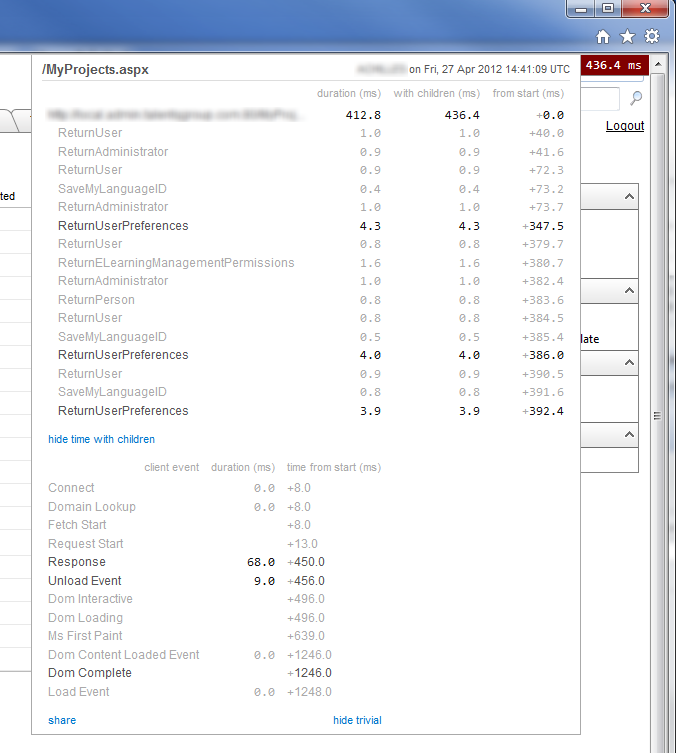
This setting was missing because we recently upgraded our WebForms project to .NET 4 and this setting apparently is provided by default in new projects. With this enabled I finally see this:


Profiling your Code

Now that everything is set up, I can start profiling code. The rationale behind MiniProfiler is to find areas that you think could perform better and then start adding using blocks around your code to record timings, like this:

private void MyLongRunningFunction()
{
    using (MiniProfiler.Current.Step("Profiling my code"))
    {
        // Your code goes here, then timings appear in the results
        // tab as "Profiling my code"
    }
}

This seems to annoy a lot of people, their argument being that they shouldn't be making their code "ugly" just to do some simple profiling. My opinion on the matter is:
  1. I've seen far uglier code than this.
  2. You don't have to put these blocks of code everywhere, just the areas you want to inspect, and
  3. Once you've finished profiling and if it really bothers you, why not just remove them?

Profiling your Database

Now this is where I do have a bone of contention with the MiniProfiler developers. But first let me give some context.

At work we use stored procedures for all our database calls, no inline SQL. We then have a data-access layer which basically has a class method mapped to each stored procedure using standard ADO.NET code (raw SqlConnection and SqlCommand objects). Overall we must have hundreds of these methods throughout this layer. Sometimes it's not perfect but overall I'm happy with the way it works and see no reason to change it.

So I wasn't that impressed when I read what was said about integrating database profiling with MiniProfiler. Quoted from their website:
The profiler includes powerful and comprehensive database profiling capabilities. To enable wrap your database connection with a profiling connection.
Basically they are suggesting I re-write a lot of my data-access code to facilitate this library, which I disagree with: this library is meant to fit around my needs, not the other way around.

Unfortunately database profiling is something I really wanted as my gut instinct tells me that is where a lot of our performance bottlenecks could be. Having pondered on the situation I decided to compromise by wrapping our ADO.NET code within a using/timing block to achieve a similar effect - in fact, I posted an explanation of what I did on this StackOverflow question. I imagine that I am losing some benefits from my approach, but at least I can see which stored procedures are called on each request and can see how long they are taking to complete.

The timings highlighted are stored procedure calls taken from being wrapped around simple Step() profiler calls.

Conclusion

It took me a couple of hours to get everything working but it has resulted, at the very least, in showing me that we do a lot of duplicate database calls which are unnecessary. I'm looking forward to finding the slowest parts of our code (which I know are there) and seeing how we can optimise them.

Regarding my opinions on MiniProfiler itself, I'm not entirely sure why the detractors make such a fuss over it. Yes it is quite basic as a profiler and doesn't cover all your running code like some professional tools would, but what do you expect for something that is free to use?

Having some issues around database profiling I can also appreciate why some people would not want to alter their code just to get a pretty profiling page appear on their website. Personally, although the MiniProfiler developers sell it as something you can run in a live environment, I see it as more of a testing/debugging aid mainly for use in our development environment. It might be interesting to see how a real server setup affects the outcomes of things but ultimately I think I will use this during development on our code/stored procedures.

Tuesday, 17 April 2012

Saving Your Database Server From CPU Meltdown

This week I helped investigate a problem with our database server. Our customers were complaining that they could not log in to our website, so we took a look at our database server and found it to be using 100% CPU! Uh oh...

Something was clearly hammering our SQL Server database but how do you find the problem? Where do you start?

Tracing

I quickly Googled around to find out how I can track down performance bottlenecks and happened upon this excellent blog post: Finding the Causes of Poor Performance in SQL Server. I would highly recommend you bookmark this link, it might just save your bacon one day.

I won't repeat ad-nauseum what this post said, but effectively it involved setting up a trace running on your database - just like SQL Profiler but without the GUI - and then reading the trace file that is produced into a temporary table to be able to query it.

So we set up a trace to record all stored procedure calls for 30 minutes and analysed the results. We found that, within this period, one stored procedure was being called over 8000 times and was taking up a vast amount of time/resources. Great, lets start looking at improving this procedure.

Optimising

I can't go into great details about the problematic procedure - the system I work on is for a commercial business - but let me give an overview of what it was doing.

We have a table called Client which represents a hierarchical data structure, so every row in this table has a reference key to a parent Client. This procedure was being given an ID to a Client record and it then had to recurse up through the hierarchy until a certain condition was met, which would then return the top-most Client ID.

There were several things wrong with this approach:
  1. The procedure was using a database function in the WHERE clause to do this hierarchical searching, which is not very good for performance. Couple that with having to search an entire table and it must have slowed down the procedure a lot.
  2. Searching through the hierarchy of Client records was done using a WHILE loop; check the current row and if it did not meet a certain condition check the parent row and keep repeating. In my experience, SQL Server is never that great at working in this imperative fashion.
The fact that this procedure was being invoked so often meant I had to rewrite it to perform better. The solution I came up with is to use another table we have called ClientLookup. This solves the problem of a hierarchy being stored in the database by flattening all the parent IDs for every primary key in the Client table; filtering on a particular Client ID will therefore give you the entire list of parent Clients. Also the ClientLookup table is well indexed.

After rewriting this procedure to join on our ClientLookup table instead of a database function, CPU usage shot down dramatically. Below is a screenshot of the CPU graph in Resource Monitor. I've added an arrow to show the point where I made my procedure changes live.


Conclusion

This one simple change has now meant our entire system is working at light speed; in fact I'm amazed that doing this one thing has made such a profound impact. CPU usage on the server is at the lowest it has been for years whilst still working effectively, webpage request times have reduced greatly and our response times to the website all around the world has been halved.

What can we take away from this? Check your database performance regularly. Using the technique I used above, finding the biggest bottleneck and fixing it could give you big wins.

Sunday, 8 April 2012

SQL Server - Delete Millions of Rows Without Pummeling the Transaction Log

Here's a problem that I've encountered several times and struggled with before I settled on this solution.

Let's say that you have a table in your SQL Server which has millions of rows in it and for whatever reason you decide you want to delete all of them. So, you initially think "simple, I'll just do this":

delete from [MyTable]

But there's a problem with this. You see, you are also using a full recovery model and are therefore writing to a transaction log file for every transaction you perform. If you were to send this command to SQL Server, it has to also write millions of updates to the transaction log in case you need to recover this data. If this also happens to be your live database you've now effectively brought it grinding to a halt. Not good.

So, the way around this problem is actually quite simple. Instead of deleting millions of rows at once, delete much smaller batches of rows but keep doing it until the table is empty.

declare @rows int = (select COUNT(*) from [MyTable])

while @rows > 0 begin
    delete top (10000) from [MyTable]

    set @rows = (select COUNT(*) from [MyTable]
end

Deleting 10,000 rows at a time will not make much of a dent when updating the transaction log and, because we keep repeating the operation when each delete is finished, other connections to the database can still do work, meaning you can now do this in a live environment and not affect performance much - though I would hope you know what you are doing clearing that big a table in a live environment!